Chapter 150 · LLM Analytics Setup
Subchapter 150.31
references/pydantic-ai.mdMarkdown5 KBView on GitHub
Required
Setting up analytics starts with installing the PostHog SDK. The Pydantic AI integration uses PostHog’s OpenAI wrapper.
pip install posthog2
Required
Install Pydantic AI with OpenAI support. PostHog instruments your LLM calls by wrapping the OpenAI client that Pydantic AI uses.
pip install 'pydantic-ai[openai]'3
Required
Initialize PostHog with your project token and host from your project settings (opens in a new tab), then create a PostHog AsyncOpenAI wrapper, pass it to an OpenAIProvider, and use that with Pydantic AI’s OpenAIChatModel.
from pydantic_ai import Agent
from pydantic_ai.models.openai import OpenAIChatModel
from pydantic_ai.providers.openai import OpenAIProvider
from posthog.ai.openai import AsyncOpenAI
from posthog import Posthog
posthog = Posthog(
"<ph_project_token>",
host="https://us.i.posthog.com"
)
openai_client = AsyncOpenAI(
api_key="your_openai_api_key",
posthog_client=posthog
)
provider = OpenAIProvider(openai_client=openai_client)
model = OpenAIChatModel(
"gpt-5-mini",
provider=provider
)How this works
PostHog’s AsyncOpenAI wrapper is a proper subclass of openai.AsyncOpenAI, so it works directly as the client for Pydantic AI’s OpenAIProvider. PostHog captures $ai_generation events automatically without proxying your calls.
4
Required
Create a Pydantic AI agent with the model and run it. PostHog automatically captures an $ai_generation event for each LLM call.
agent = Agent(
model,
system_prompt="You are a helpful assistant.",
)
result = agent.run_sync(
"Tell me a fun fact about hedgehogs.",
# Pass PostHog metadata via the OpenAI client's extra params
)
print(result.output)You can expect captured $ai_generation events to have the following properties:
| Property | Description |
|---|---|
| $ai_model | The specific model, like gpt-5-mini or claude-4-sonnet |
| $ai_latency | The latency of the LLM call in seconds |
| $ai_time_to_first_token | Time to first token in seconds (streaming only) |
| $ai_tools | Tools and functions available to the LLM |
| $ai_input | List of messages sent to the LLM |
| $ai_input_tokens | The number of tokens in the input (often found in response.usage) |
| $ai_output_choices | List of response choices from the LLM |
| $ai_output_tokens | The number of tokens in the output (often found in response.usage) |
| $ai_total_cost_usd | The total cost in USD (input + output) |
| […] (opens in a new tab) | See full list (opens in a new tab) of properties |
Recommended
Confirm LLM events are being sent to PostHog
Let’s make sure LLM events are being captured and sent to PostHog. Under LLM analytics, you should see rows of data appear in the Traces and Generations tabs.
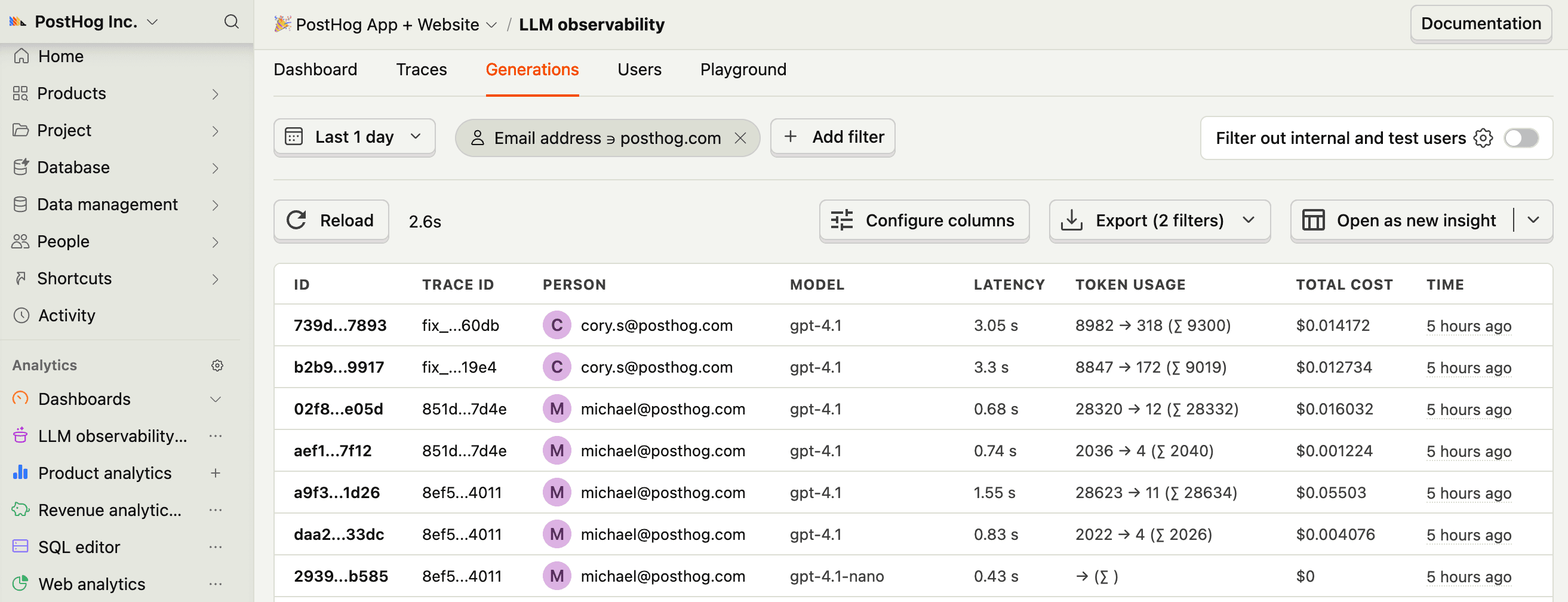
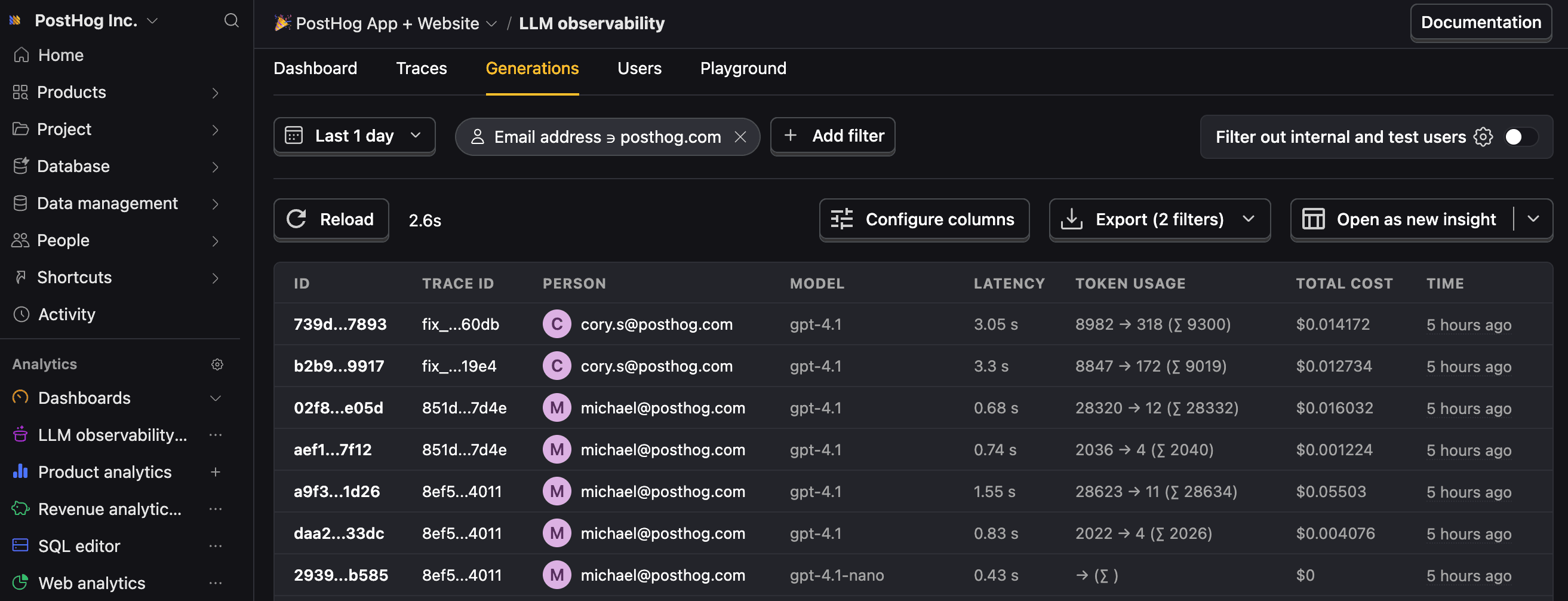
5
Recommended
Now that you’re capturing AI conversations, continue with the resources below to learn what else LLM Analytics enables within the PostHog platform.
| Resource | Description |
|---|---|
| Basics (opens in a new tab) | Learn the basics of how LLM calls become events in PostHog. |
| Generations (opens in a new tab) | Read about the $ai_generation event and its properties. |
| Traces (opens in a new tab) | Explore the trace hierarchy and how to use it to debug LLM calls. |
| Spans (opens in a new tab) | Review spans and their role in representing individual operations. |
| Anaylze LLM performance (opens in a new tab) | Learn how to create dashboards to analyze LLM performance. |
Ask a question
HelpfulCould be better