Setting up analytics starts with installing the PostHog SDK. CrewAI uses LiteLLM under the hood, and PostHog integrates with LiteLLM’s callback system.
Set your PostHog project token and host as environment variables, then configure LiteLLM to use PostHog as a callback handler. You can find your project token in your project settings (opens in a new tab).
CrewAI uses LiteLLM under the hood for LLM provider access. By configuring PostHog as a LiteLLM callback, all LLM calls made through CrewAI are automatically captured as $ai_generation events without proxying your calls.
Run your CrewAI agents as normal. PostHog automatically captures generation events for each LLM call.
python
researcher = Agent( role="Researcher", goal="Find interesting facts about hedgehogs", backstory="You are an expert wildlife researcher.",)task = Task( description="Research three fun facts about hedgehogs.", expected_output="A list of three fun facts.", agent=researcher,)crew = Crew( agents=[researcher], tasks=[task],)result = crew.kickoff()print(result)
You can expect captured $ai_generation events to have the following properties:
Property
Description
$ai_model
The specific model, like gpt-5-mini or claude-4-sonnet
$ai_latency
The latency of the LLM call in seconds
$ai_time_to_first_token
Time to first token in seconds (streaming only)
$ai_tools
Tools and functions available to the LLM
$ai_input
List of messages sent to the LLM
$ai_input_tokens
The number of tokens in the input (often found in response.usage)
$ai_output_choices
List of response choices from the LLM
$ai_output_tokens
The number of tokens in the output (often found in response.usage)
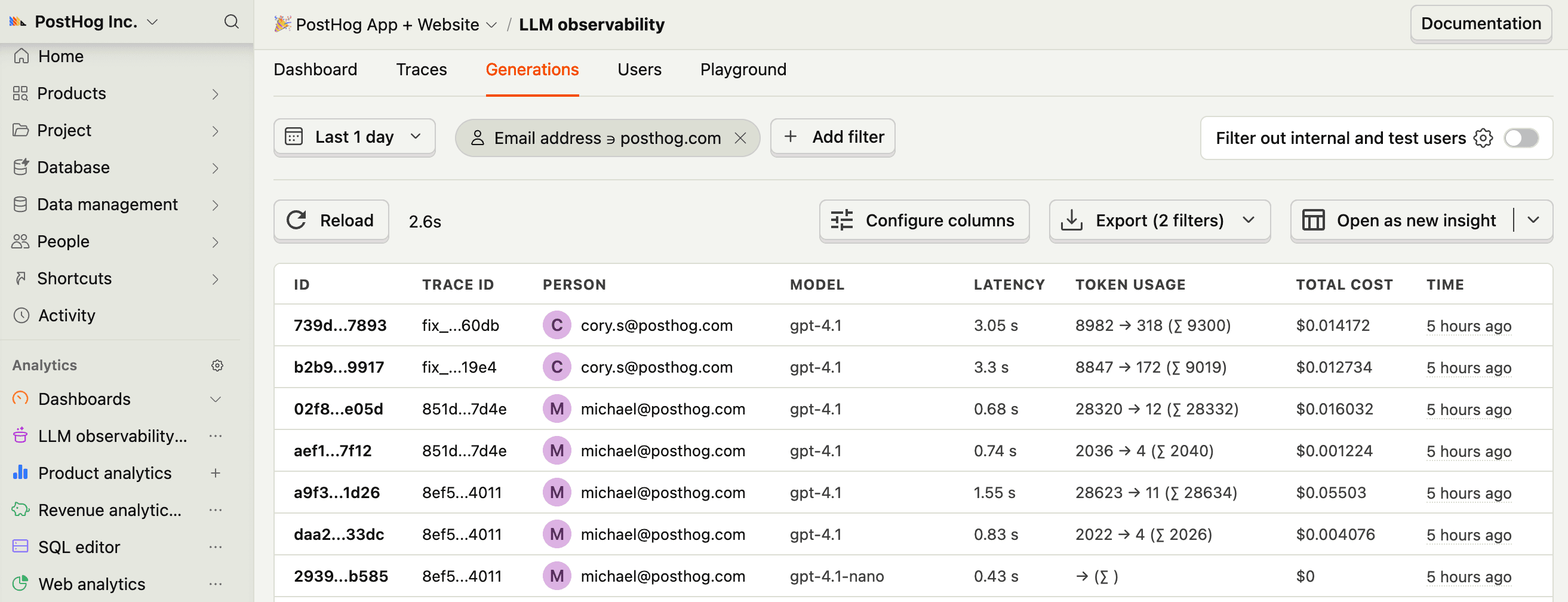
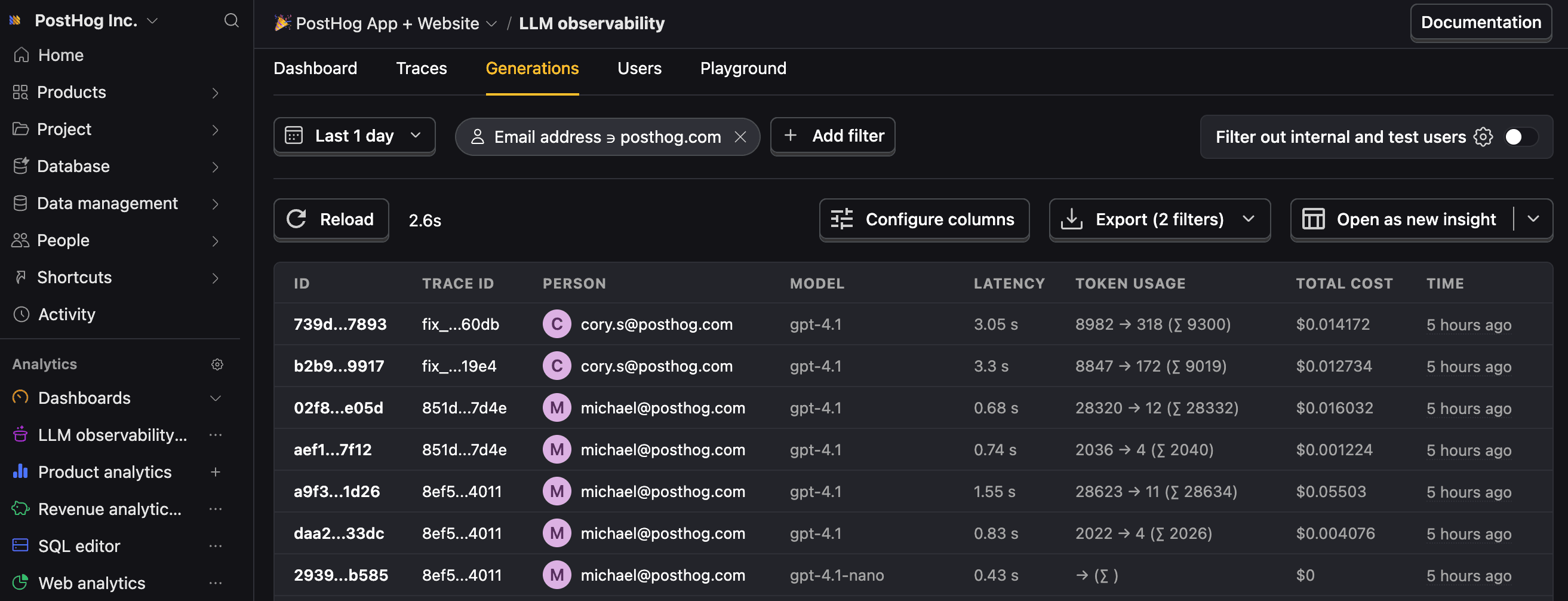
Let’s make sure LLM events are being captured and sent to PostHog. Under LLM analytics, you should see rows of data appear in the Traces and Generations tabs.