Setting the file. One moment.
Chapter 173 · Error Tracking Nuxt
Subchapter 173.1
references/alerts.mdMarkdown4 KBView on GitHub
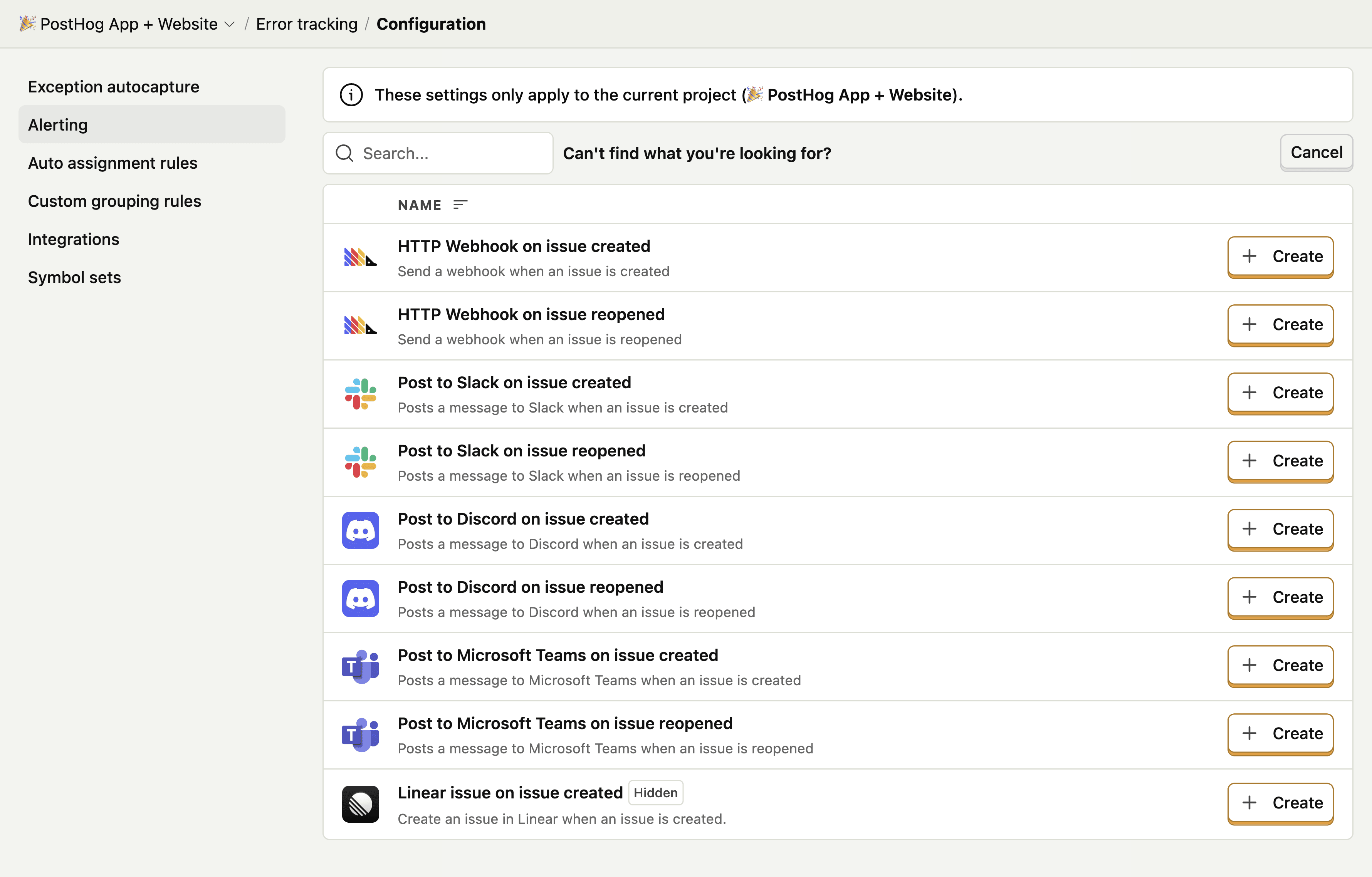
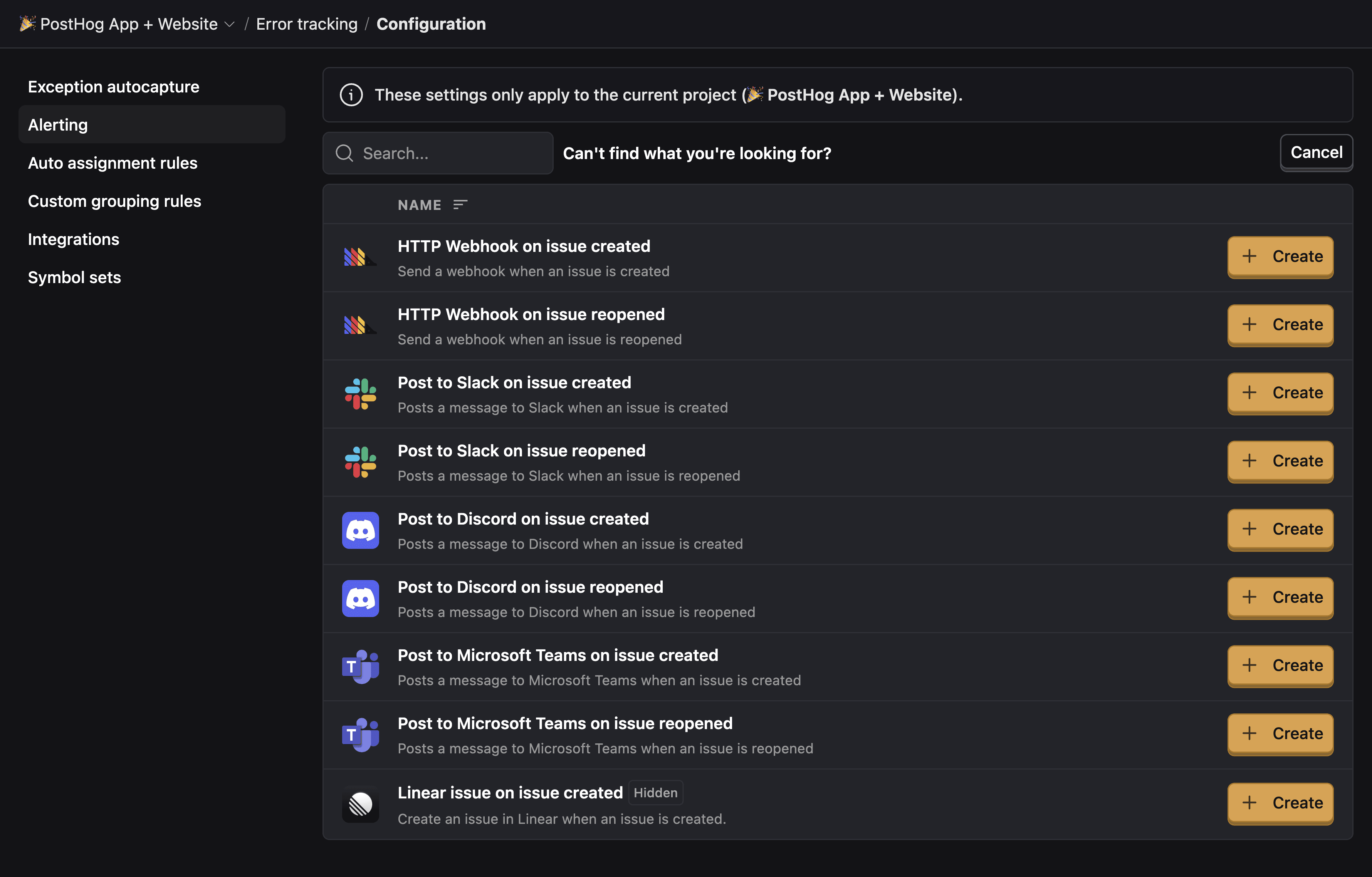
To stay on top of issues, you can set up alerts. These enable you to post to Slack, Discord, Teams, or an HTTP Webhook when an issue is created or reopened.
To alert when an issue is created or reopened, go to error tracking’s configuration page (opens in a new tab) and click Alerting. This shows you a list of existing alerts. Clicking New notification brings you to a page to create a new one.
Choosing an option brings you to a page to configure the alert. This may require setting up the Slack integration or pasting in a webhook URL. Once done, you can test the alert by clicking Test function and then finalize by clicking Create & enable.
This will then send alerts to your chosen destination when an issue is created or reopened like this:
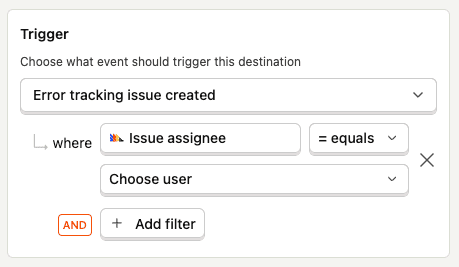
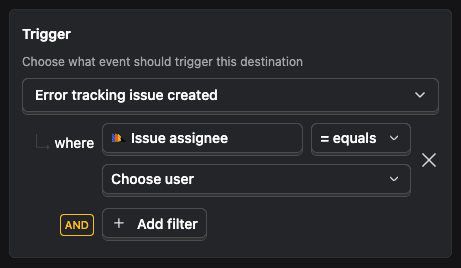
You can filter an alert based on the properties of an issue. This is useful for notifying a specific team when they have been auto assigned an issue using auto assignment rules (opens in a new tab).
PostHog can also alert you when an existing issue suddenly spikes in volume - for example, after a bad deploy. This works differently from issue-created alerts. Instead of triggering when a new issue is first seen, spike alerts fire when an issue’s error rate significantly exceeds its historical baseline.
See the spike detection guide (opens in a new tab) to learn how it works and how to configure it.
Since error tracking works by capturing $exception events, PostHog features that trigger by events can play a role in alerts too.
The first way is using real time destinations (opens in a new tab). This enables you to send events (like $exception) to other tools as soon as they are ingested.
To create a real time destination, go to the data pipelines tab (opens in a new tab) in PostHog, click + New, and then select Destination. Choose your destination and press + Create.
On the destination creation screen, make sure to add an event matcher for the $exception event, filter for the properties you want, and set the trigger options.
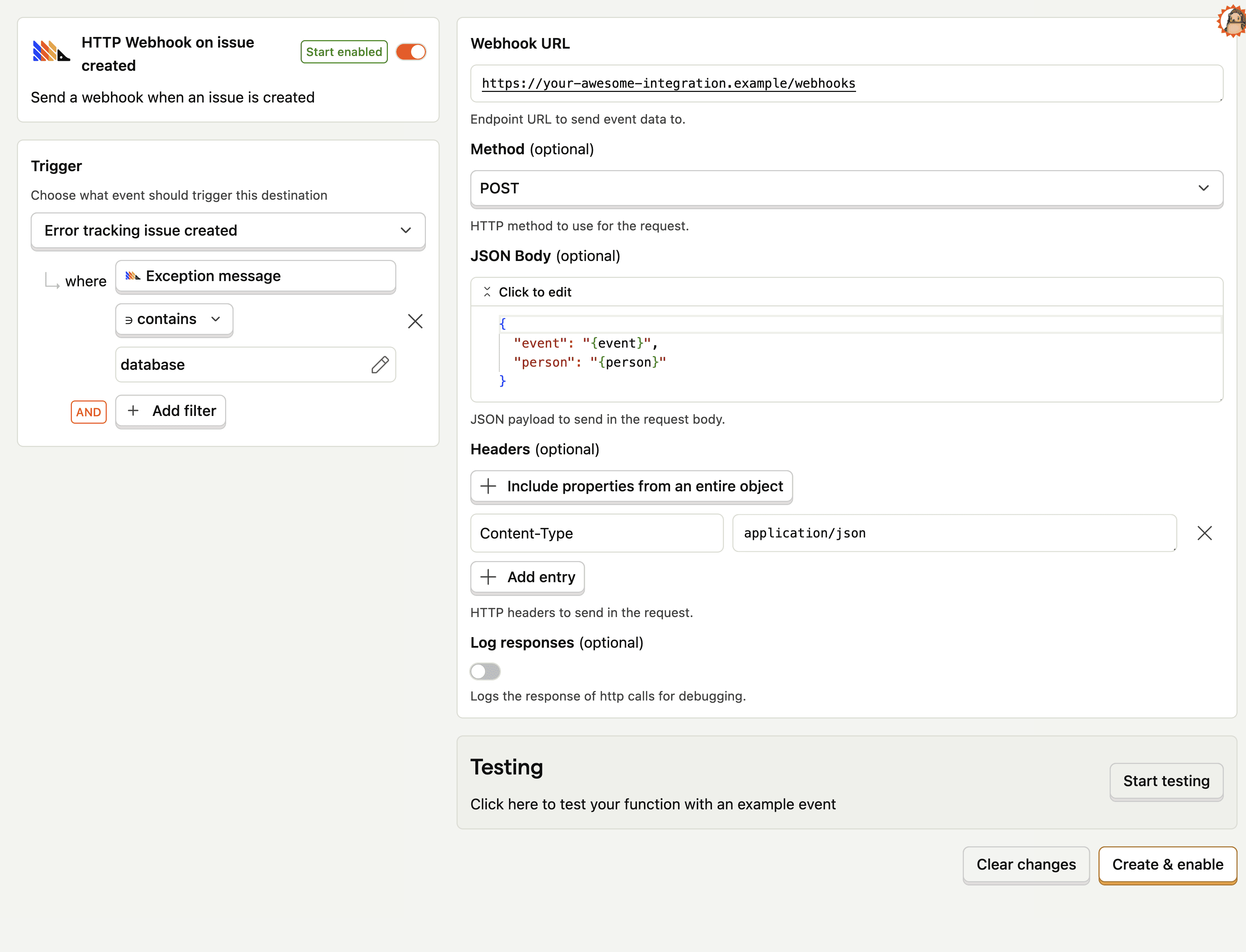
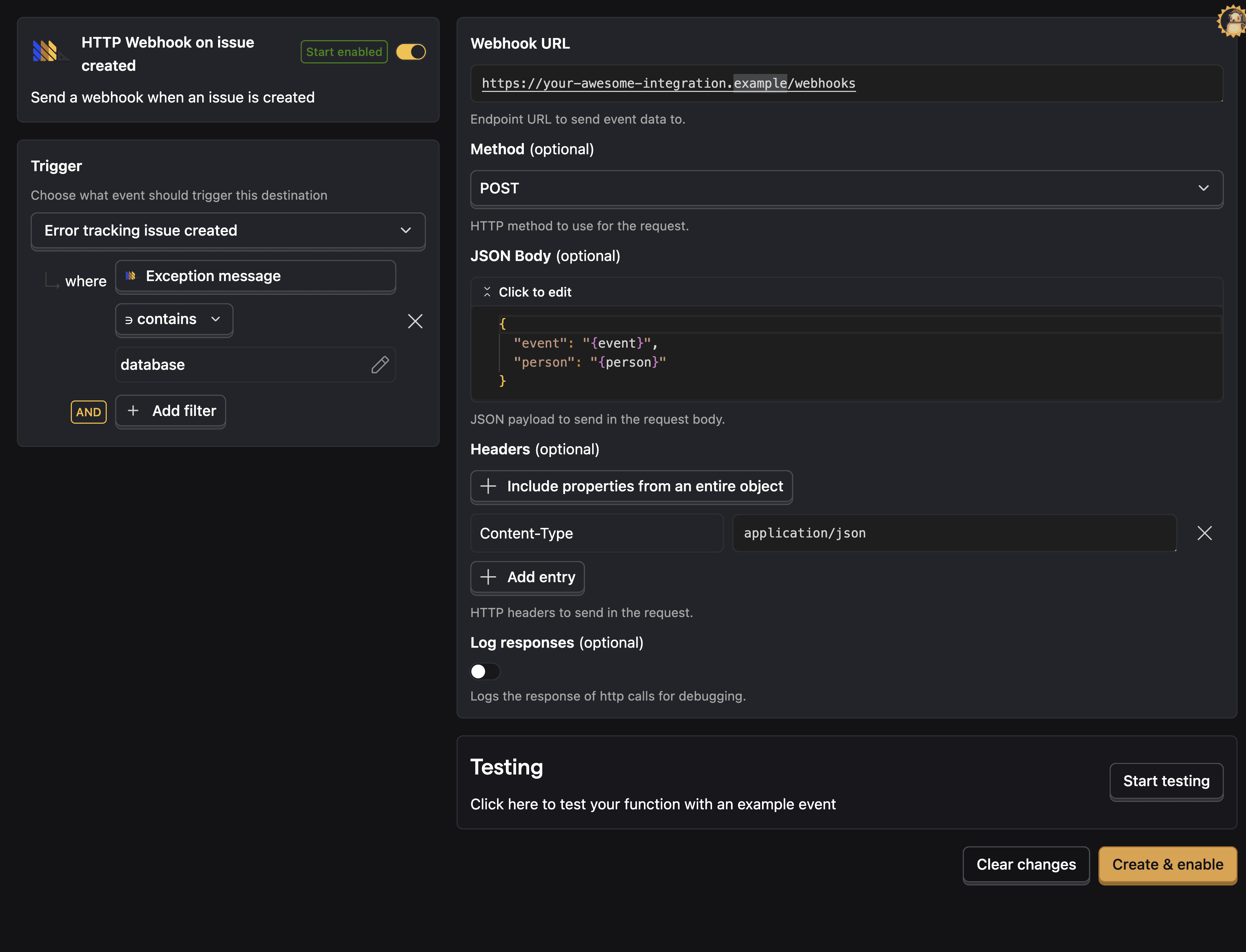
Check out our real time destinations docs (opens in a new tab) for more information.
You can also visualize your $exception events using trends (opens in a new tab). Once you create a trend insight, click the Alerts button at the top of the insight and then New alert.
Here you can set alerts for event volume value, increase, or decrease.
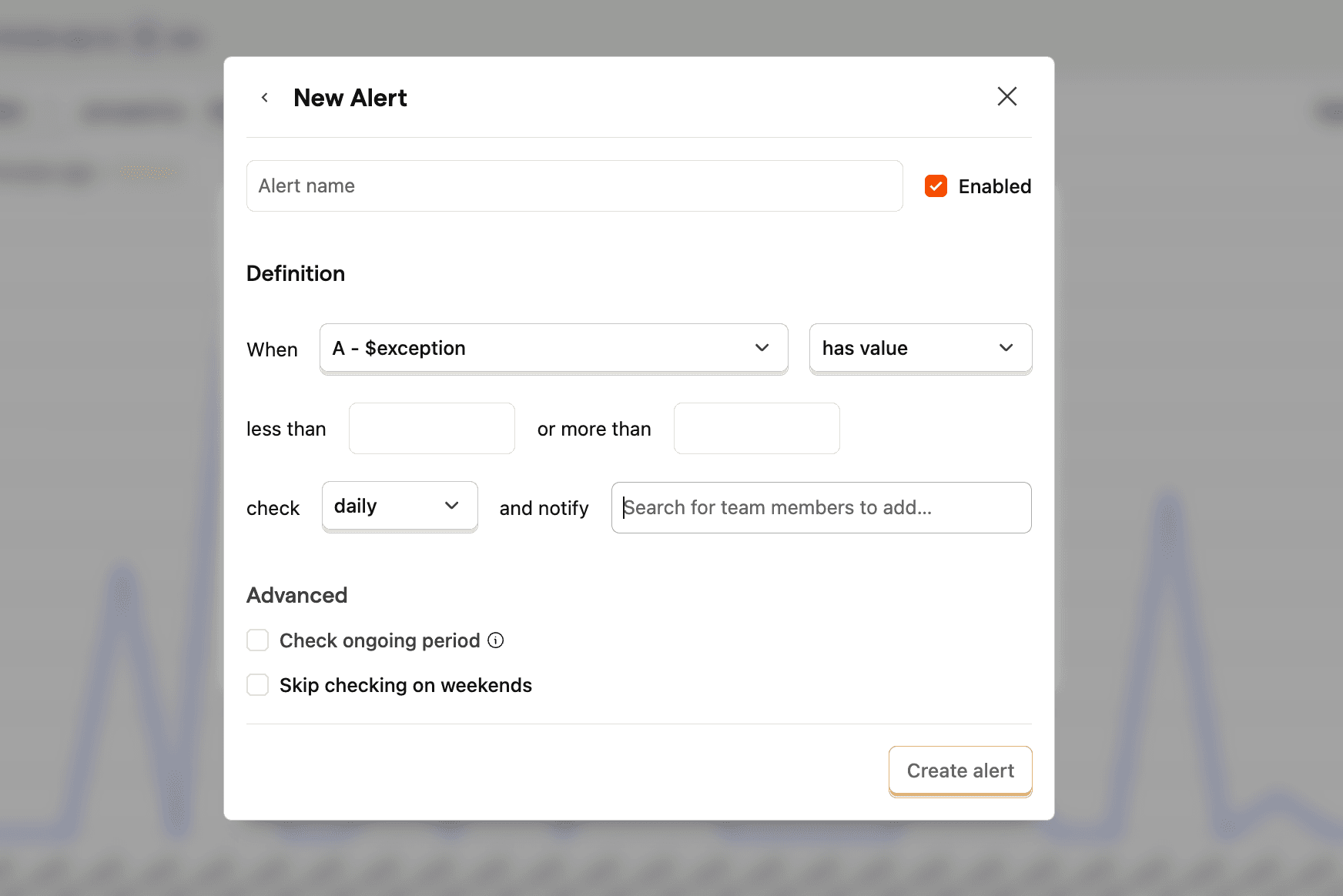
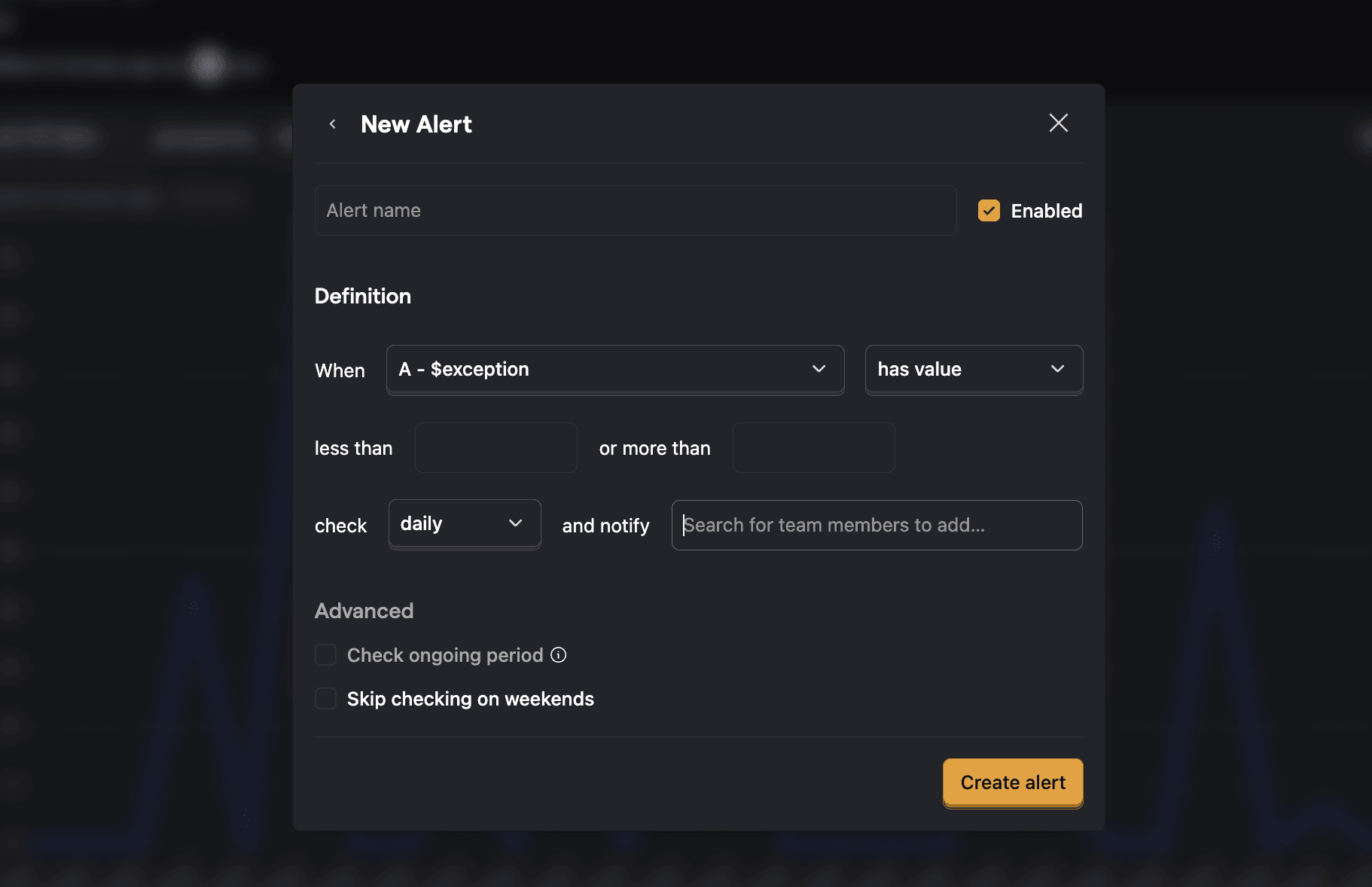
This sends an email notification to the user you choose. Check out our alerts docs (opens in a new tab) for more information.
Can’t find your alert?
If you’d like a destination to be added that we don’t yet support, let us know in-app (opens in a new tab).
Ask a question
HelpfulCould be better