Setting the file. One moment.
Chapter 91 · Error Tracking Next.js
Subchapter 91.2
references/assigning-issues.mdMarkdown6 KBView on GitHub
Error tracking enables you to assign issues to specific PostHog roles or teammates. This helps your team find relevant issues through . You can also set up team-specific to notify them when assigned issues are created or reopened.
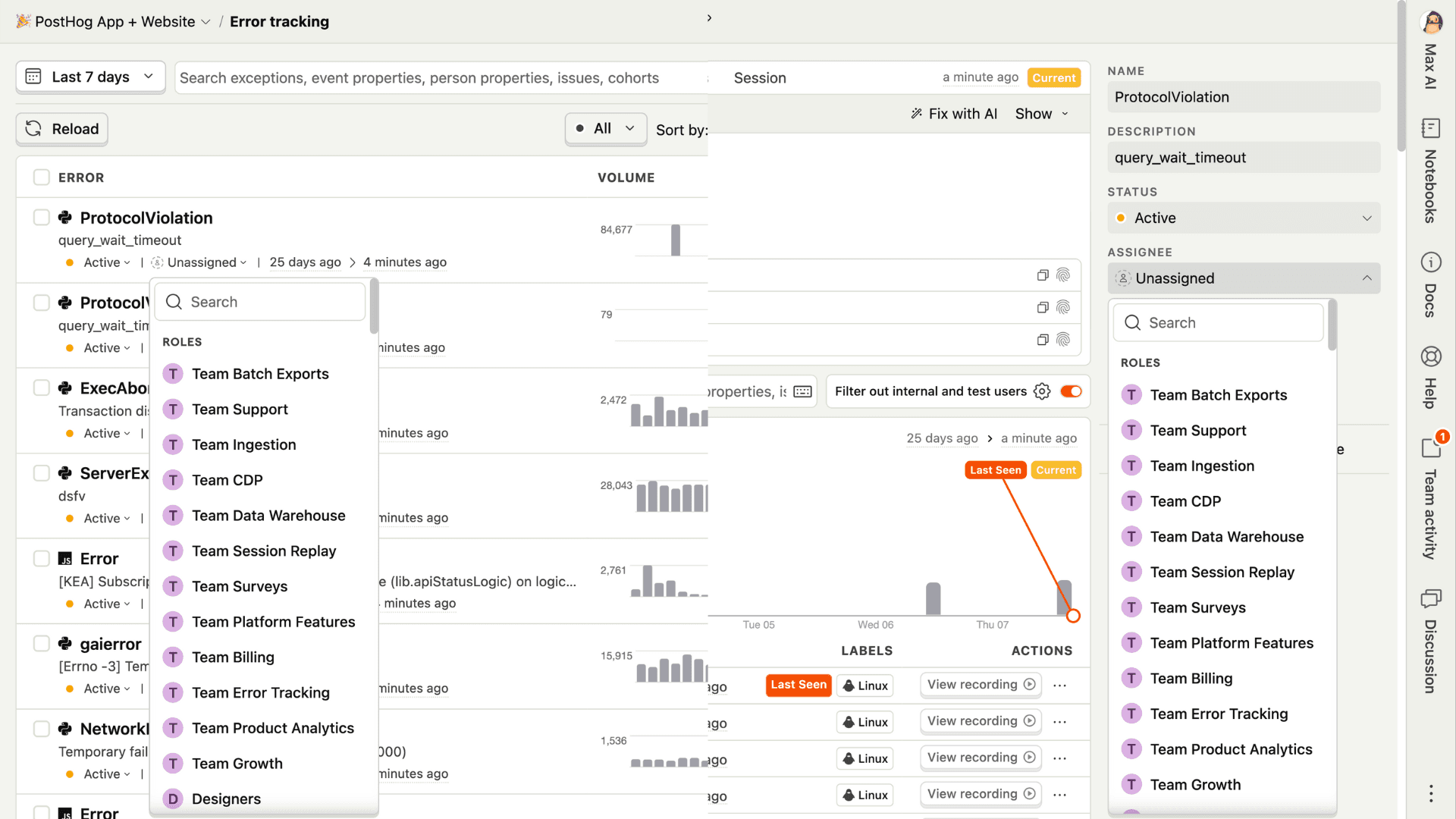
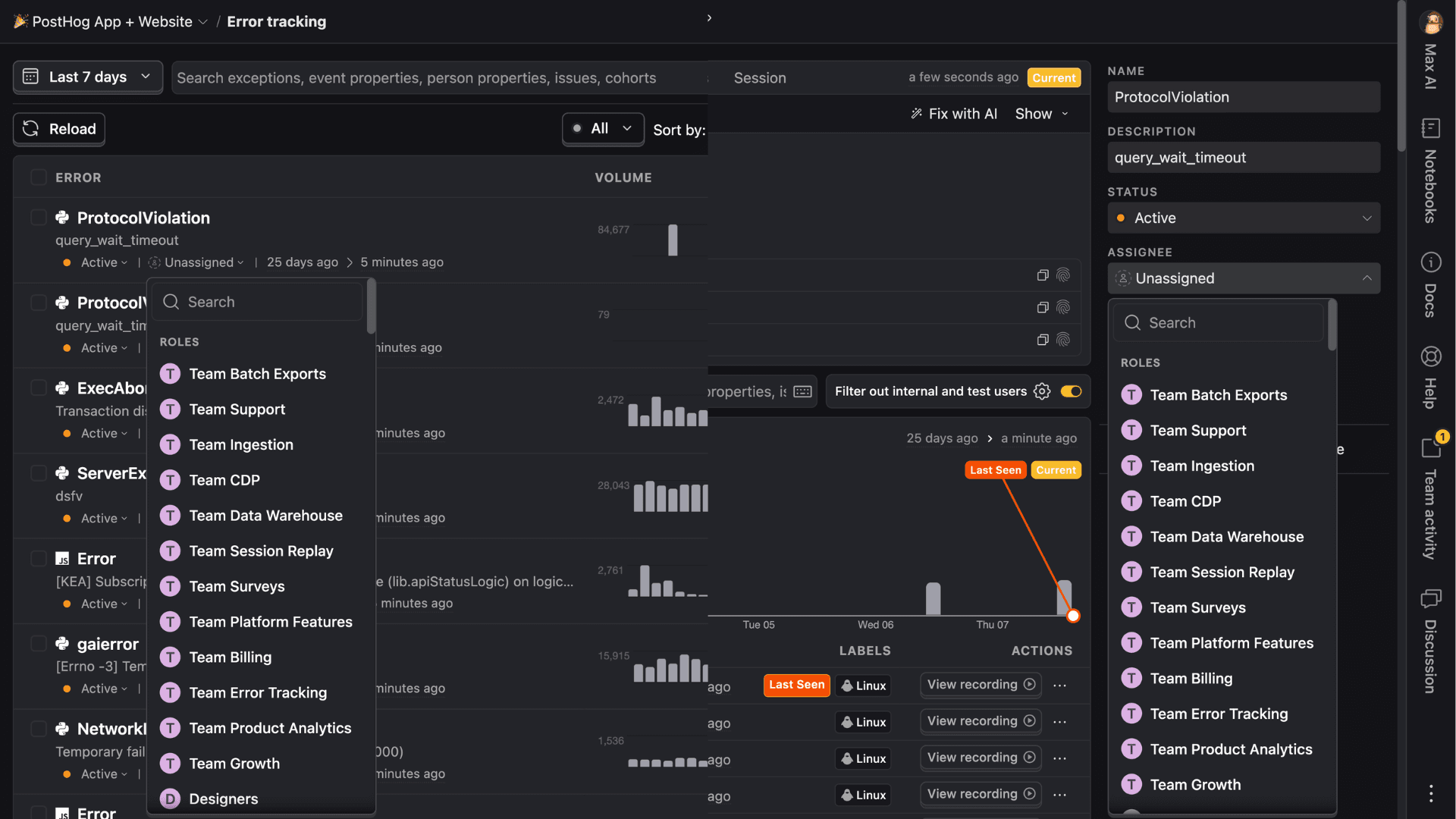
You can manually assign issues as you triage them in the UI. This can be done both in the issue list and issue detail pages.
In your error tracking issue list (opens in a new tab), click the unassigned selector under each issue to assign it to a role or user.
On the detail page of each issue, click the Assignee selector to assign it to a role or user.
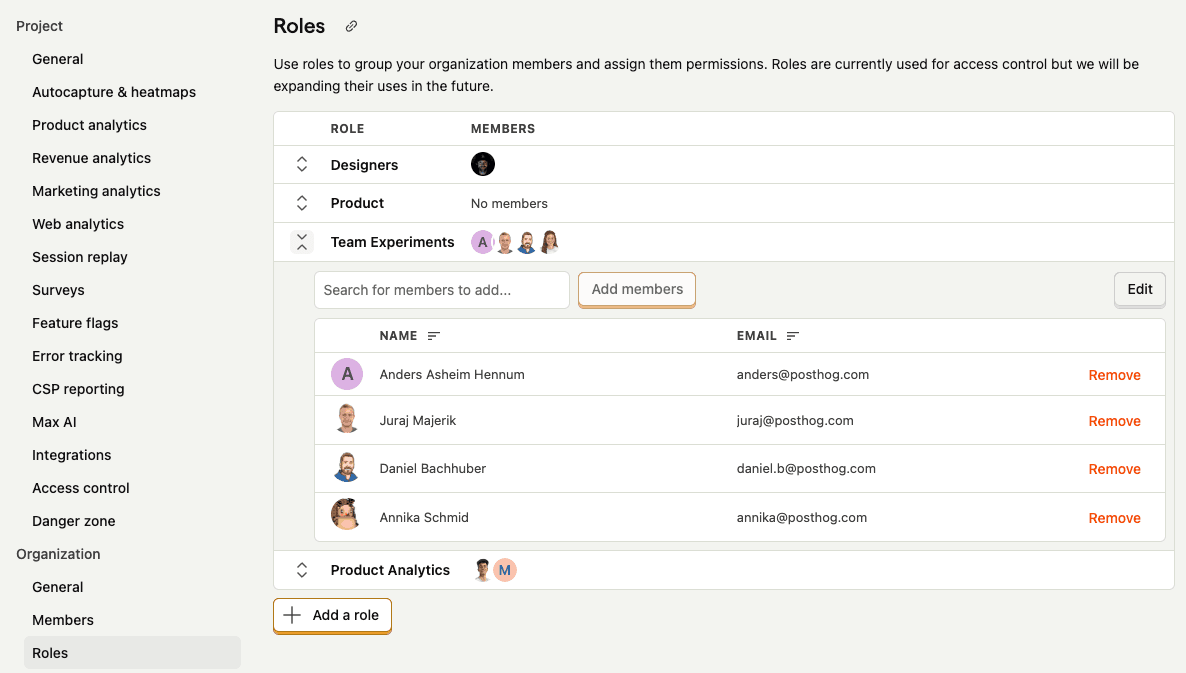
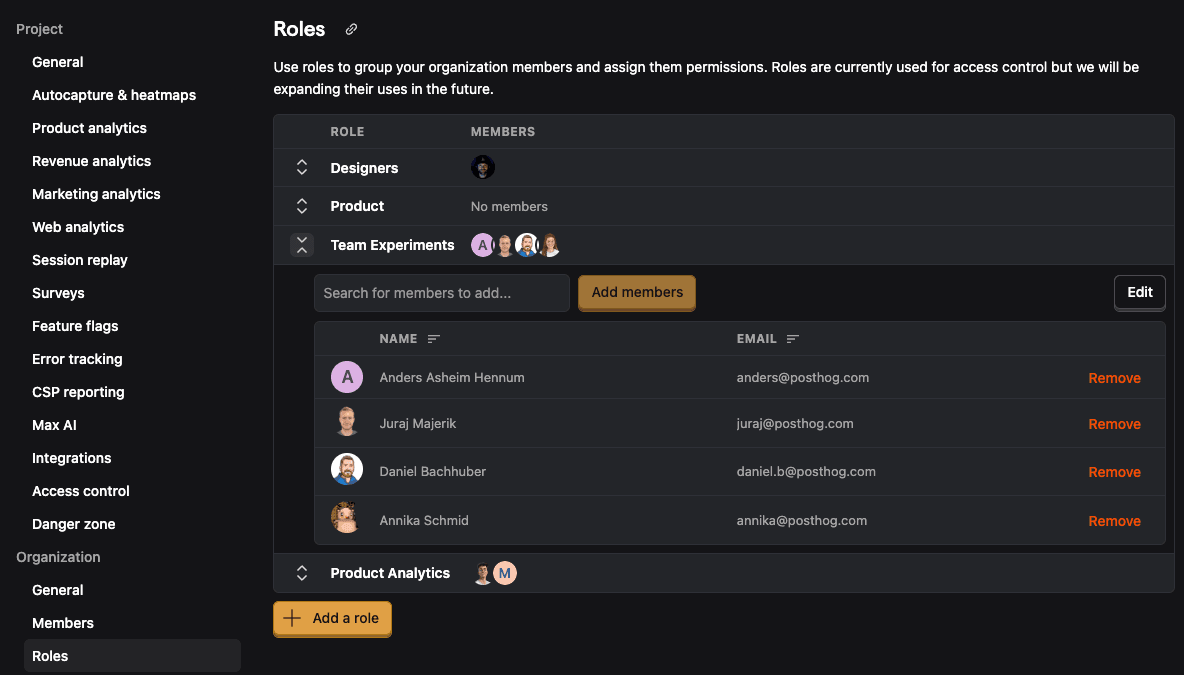
Want to assign issues to a team rather than an individual teammate? You can create a role in your project settings (opens in a new tab).
You can set up automatic issue assignment through a set of rules. This can be configured in the error tracking settings (opens in a new tab) using auto assignment rules.
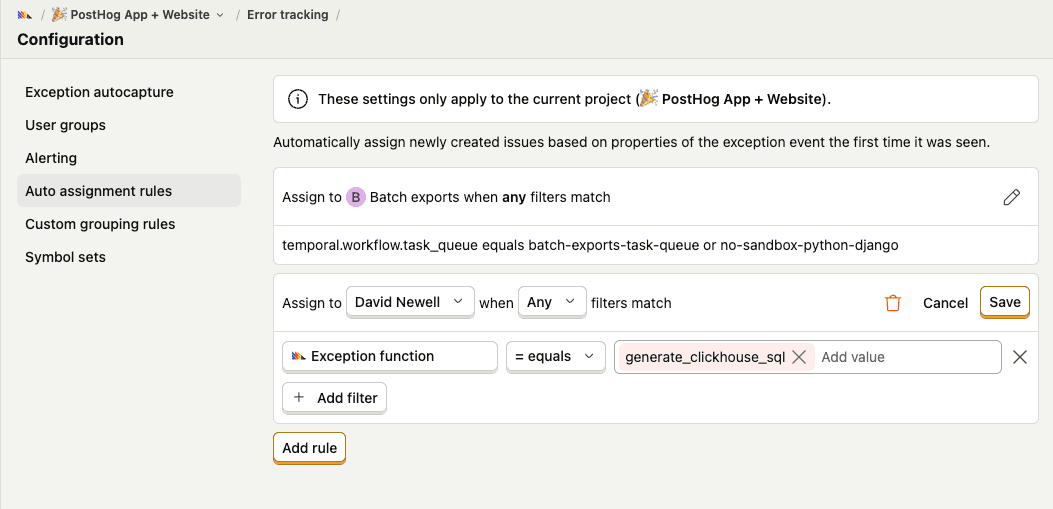
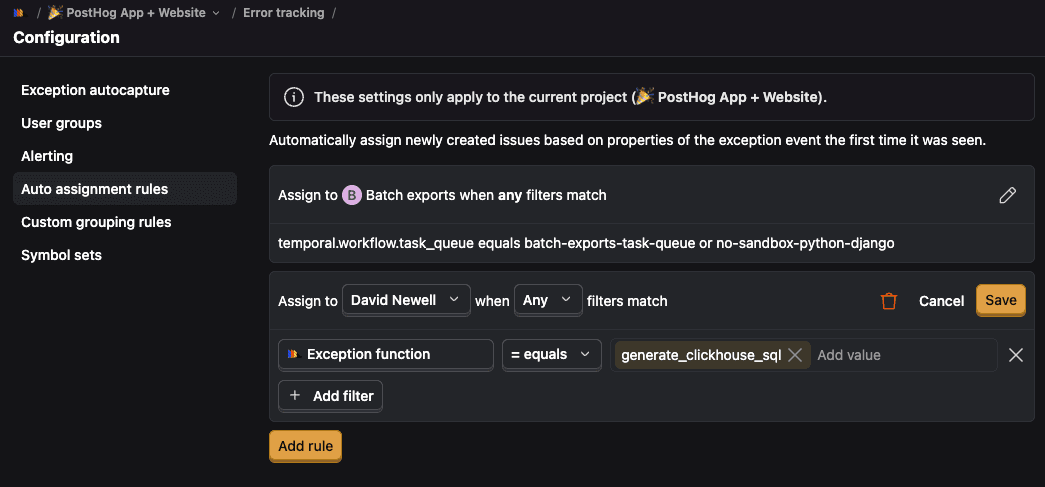
Assignment conditions are evaluated against the properties of the exception event that created the issue. Because assignment rules are evaluated during ingestion, the stack trace (if present) will be unminified, which enables filtering on exception properties such as function name and source file.
Issues can be automatically assigned to a role or user by configuring a set of filters. These filters can be configured to match any or all of the criteria.
You can configure automatic assignment to filter on any event property (opens in a new tab) in PostHog. When there are multiple values for a property, the filters return true if it matches any of the values. For example, if you have multiple exception_functions values, the filters returns true if it matches any of the functions.
Here are some common properties you can filter on:
| Property | Event property | Description |
|---|---|---|
| Exception type | $exception_types | The type of exception(s) that occurred |
| Exception message | $exception_values | The message(s) detected on the error |
| Exception function | $exception_functions | The function(s) where the exception occurred |
| Exception source | $exception_sources | The source file(s) where the exception occurred |
| Exception was handled | $exception_handled | Whether the exception was handled by the application |
| Device type | $device_type | The type of device that the error occurred on |
| Browser | $browser | The browser that the error occurred in |
| Current URL | $current_url | The URL that the error occurred on |
| Feature flag | $feature_flag | The feature flag that the error occurred on |
You can also set custom properties on the error tracking event to filter on. For example, setting a custom params_received property to provide more context or debug information.
Issue assignment filters are evaluated in the order they are configured. They can also be reordered once created. The first filter that matches is used to assign the issue. This means you should configure the most specific filters first, and then the more general filters later.
Assignment rules can become disabled if an error occurs during ingestion. When a rule is disabled, a banner displays the original error message. To re-enable the rule, edit it to fix the problem and save your changes. If the issue persists, reach out to support.
A common use case for automatic issue assignment is to alert assignees of new issues. Once the issues are automatically assigned, you can set up alerts to notify the assignee. See the alerts (opens in a new tab) guide for more information.
You can also create issues in external tracking systems like GitHub Issues, Linear, GitLab, or Jira.
First, set up an integration (opens in a new tab) with your tracking system. Then, from an issue’s details page, under External references, click Create issue.
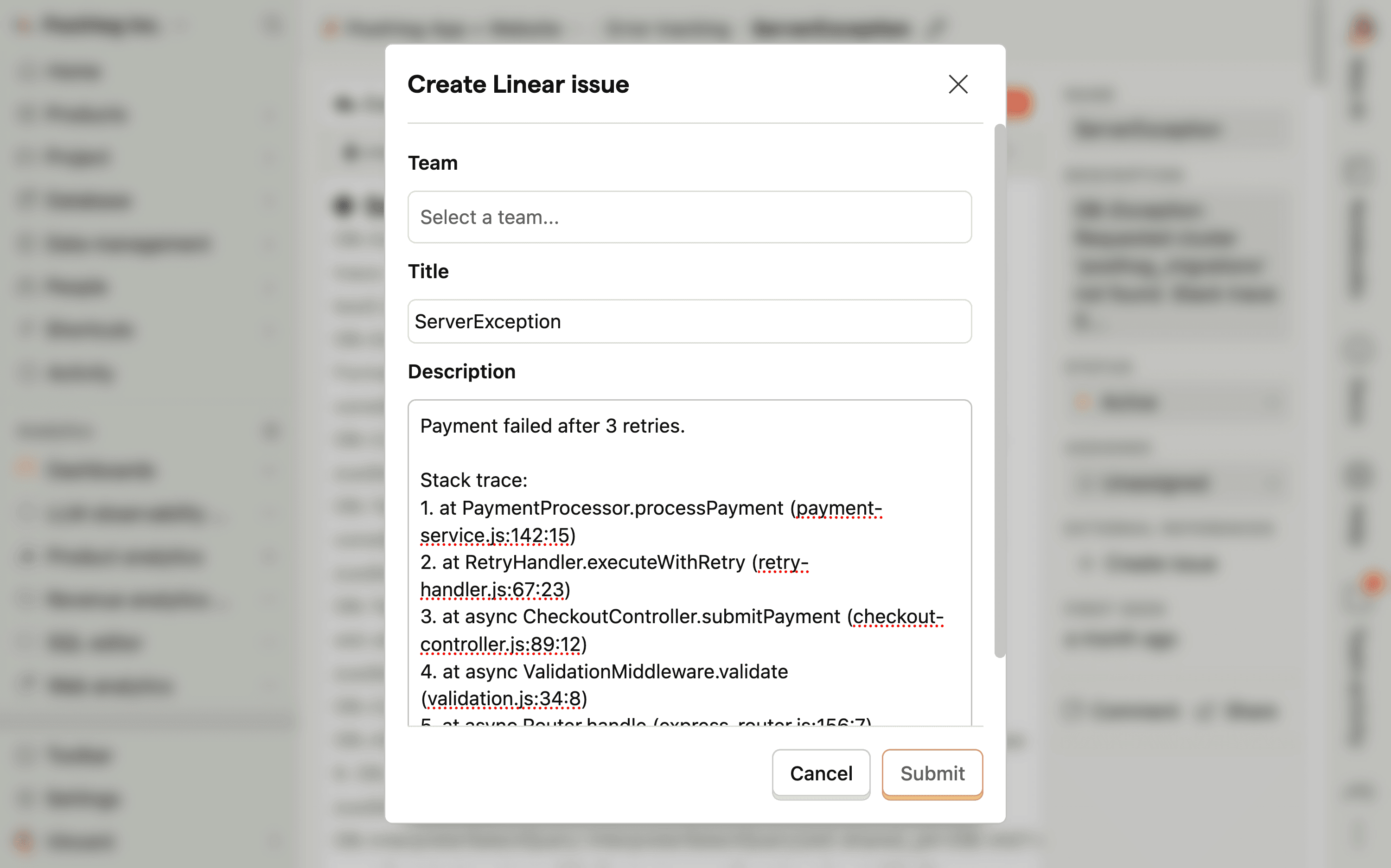
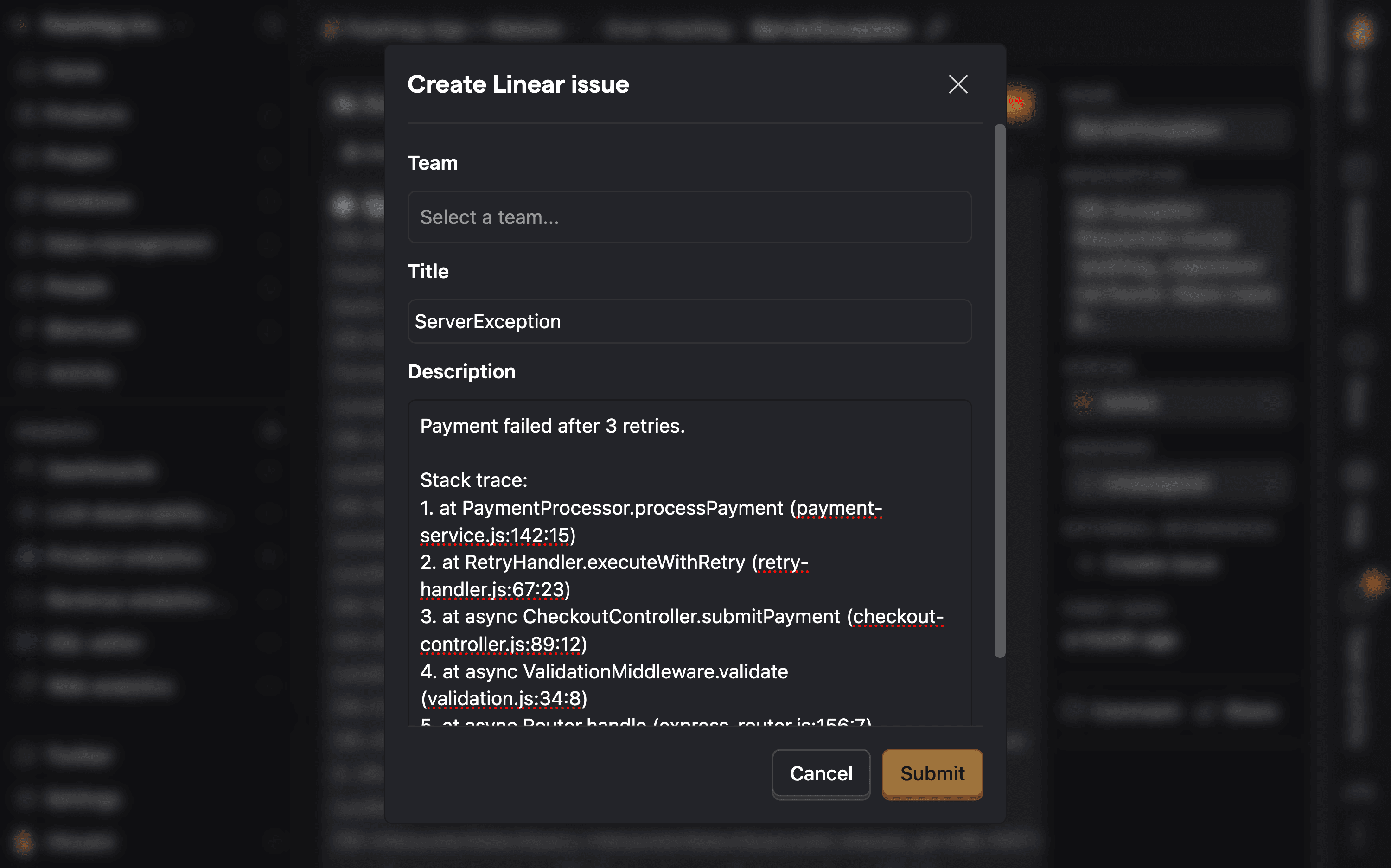
The new issue will have a partial stack trace and a link to the issue in PostHog.
If you use another issue tracking system and would like to request it, let us know in-app (opens in a new tab).
Ask a question
HelpfulCould be better